







By December 2025, Salesforce will retire Process Builder and Workflow Rules, ending support for two tools that have powered countless automations for years. Existing processes may still run, but without updates or fixes, they’ll quickly become a liability.
For many Salesforce teams, this transition exposes years of accumulated automation debt: overlapping logic, outdated workflows, and inconsistent documentation. It’s not just a cleanup exercise; it’s a critical modernization step.
According to Forrester, companies adopting modern, cloud-based automation and testing environments cut costs by up to 45% and improve coverage by 30%. Migrating to Salesforce Flow offers similar gains: faster execution, bulk processing, and support for complex logic, all in a single, future-proof automation tool.
This guide will walk you through everything you need to migrate from Process Builder to Flow in 2025, step by step, with real-world best practices, expert tips, and lessons learned from successful transitions.
Flow vs Process Builder: Feature Comparison
Pre-Migration Checklist
Successful migration from Process Builder to Flow begins with a structured audit of your existing automations. Without a clear understanding of what’s currently running in your org, you risk breaking critical processes or duplicating logic during migration.
The steps below will help you assess the scope of work, reduce risk, and prepare for a more efficient transition to Flow.
Pre-Migration Checklist for Salesforce Process Builder to Flow
Tip: If you manage dozens of automations, start by consolidating those with similar entry criteria. This reduces redundancy and improves long-term maintainability once migrated to Flow.
Pre-Migration Audit Template
Use this checklist to evaluate every Process Builder before deciding how to migrate or rebuild it in Flow. This template helps prioritize, assess complexity, and assign ownership across your org.
Step-by-Step Migration Process
Salesforce Process Builder and Salesforce workflow rules will reach end of support in December 2025. To avoid disruption and maintain automation reliability, teams need a methodical approach to migrate existing processes to Flow. The following steps outline a migration strategy that aligns with Salesforce best practices and minimizes risk.
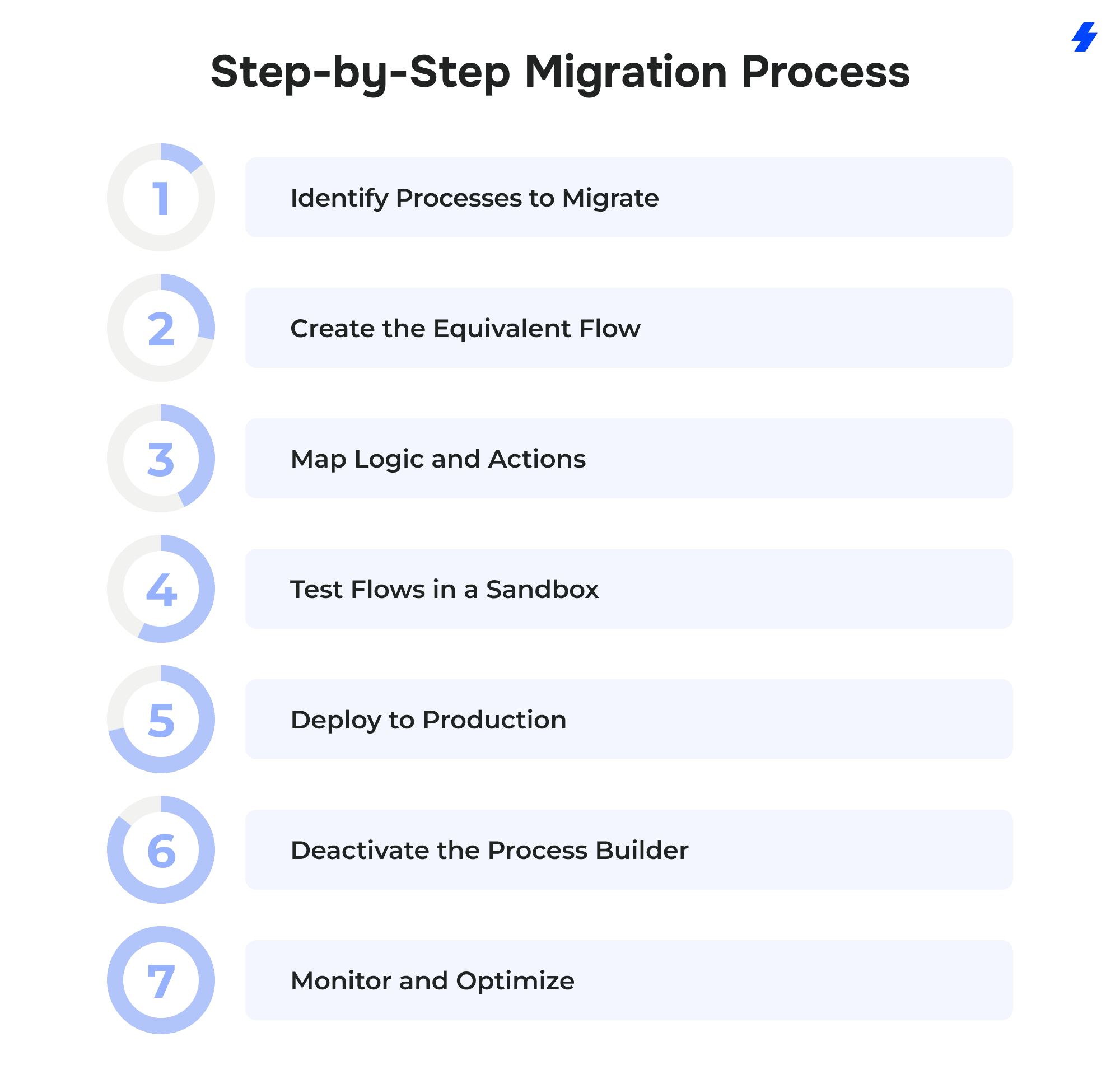
1. Identify Processes to Migrate
Start by creating a full inventory of existing workflow rules and Process Builder automations. Focus on workflows that:
- Are still active in production
- Handle high-volume transactions or mission-critical processes (e.g., lead assignments, case escalations, opportunity stage changes)
- Contain complex logic, scheduled actions, or integrations
Use Salesforce tools such as managed packages, to streamline your migration process.
- Process Builder UI: List and export processes by object and status
- Salesforce Optimizer Report: Highlight unused or inefficient automation
- Metadata API or Workbench: Extract a complete list of workflow metadata
- Custom list views: Filter by namespace to isolate unmanaged processes
For each process, record details such as:
- Name and object
- Entry criteria
- Immediate and scheduled actions
- Process version
- Last modified date
- Process owner
2. Create the Equivalent Flow
Choose the correct Flow type based on how the original Process Builder works. Each Process Builder action must be translated to one or more Flow types:
2. Create the Equivalent Flow
Choose the correct Flow type based on how the original Process Builder works. Each Process Builder action must be translated to one or more Flow types:
Example: If a Process Builder updates a Case’s status after a custom field is modified, replace it with a Record-Triggered Flow (after-save) on the Case object. If it includes a time delay (e.g. send follow-up email after 3 days), use a Scheduled Path.
Note: Always separate logic based on the triggering event. Mixing unrelated logic in a single Flow can reduce maintainability.
3. Map Logic and Actions
Translate the logic and actions in Process Builder into Flow components. This is not a 1:1 conversion; some elements must be restructured to work with Flow’s capabilities and limitations.
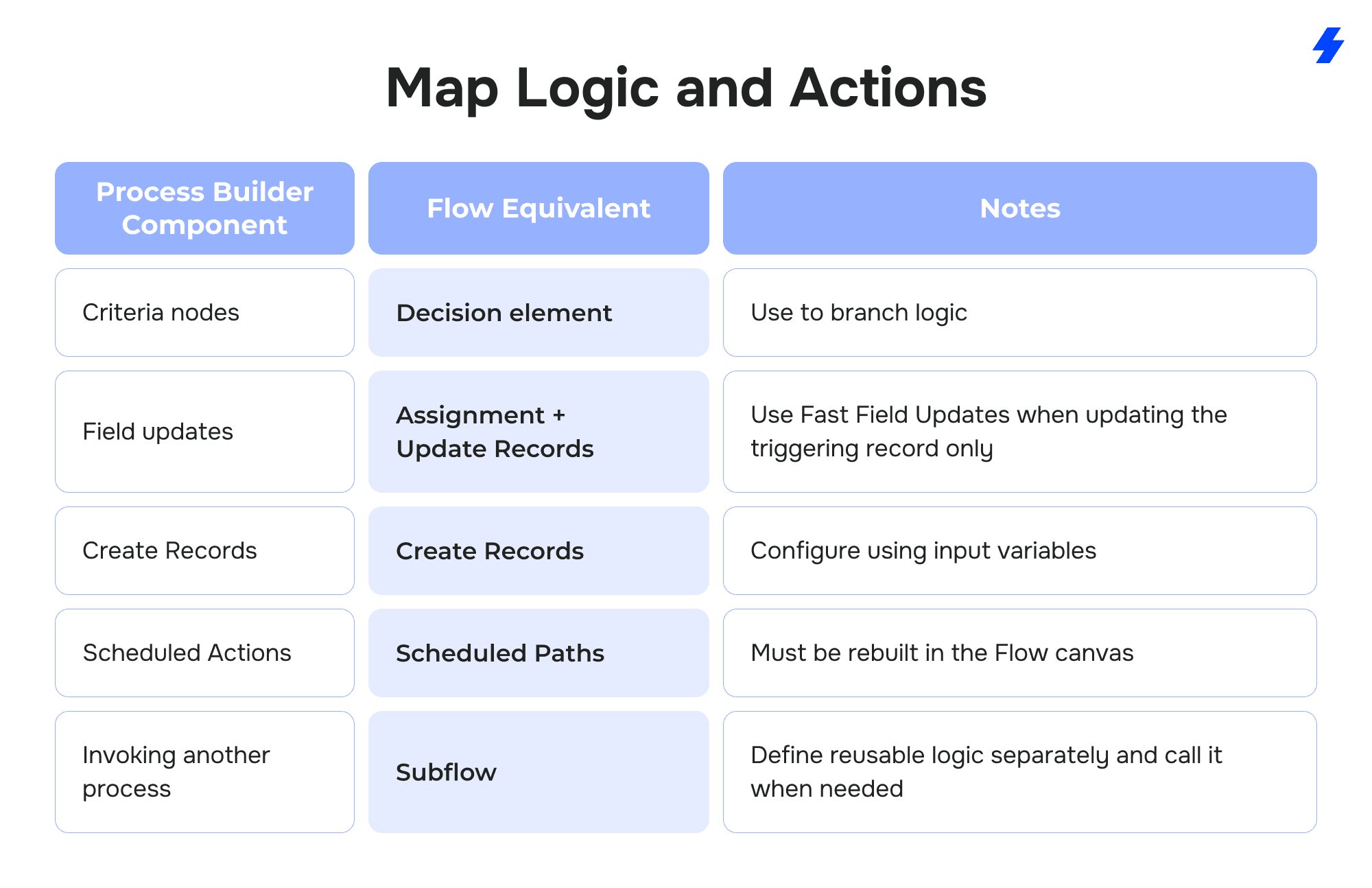
Additional considerations:
- Cross-object updates require a Get Records step before updating related objects.
- Formulas and expressions used in criteria must be reimplemented using Flow resources or formula elements.
- Error handling should be explicitly defined using Fault paths or Custom Error Messages.
Tip: Keep Flows modular. Use subflows to separate logic and avoid duplicating actions across objects.
4. Test Flows in a Sandbox
Before deploying to production, test every Flow in a full or partial sandbox environment.
Testing checklist:
- Trigger the Flow using real record changes that meet all entry conditions
- Verify each path of the logic (all branches in Decision elements)
- Confirm that all field updates, record creations, or email alerts execute correctly
- Use Debug Logs and the Flow Debugger to trace variable values and identify issues
- Check system performance: confirm there are no governor limit issues (e.g., DML in loops, SOQL limits)
Security checks:
- Verify Field-Level Security (FLS) and CRUD permissions
- Test with different user profiles and roles
- Ensure the Flow respects org-wide defaults and sharing rules
Example: If a Flow updates Opportunities based on Account status, test with Accounts that have multiple related Opportunities and simulate different user permissions to ensure proper access control.
5. Deploy to Production
Once testing is complete, use one of the following deployment methods:
- Change Sets: Standard option for admins in non-source-tracked orgs
- Salesforce CLI or ANT Migration Tool: Preferred for DevOps pipelines and version-controlled deployments
- Unlocked Packages: Best for modular deployments in scratch orgs or source-driven development
Best practices:
- Label all Flow versions clearly with version numbers and descriptions
- Avoid deploying multiple Flow changes at once unless they’re interdependent
- Maintain backup metadata in version control before go-live
- Plan deployment during low-traffic hours to reduce impact
6. Deactivate the Process Builder
After verifying the Flow works correctly in production, manually deactivate the corresponding Process Builder. This avoids duplicate execution of logic and reduces system overhead.
Steps:
- Go to Setup > Process Builder
- Locate the old process
- Click "Deactivate"
- Confirm that the Flow is active and functioning correctly
Note: The Migrate to Flow tool does not deactivate the original Process Builder automatically. You must complete this step to avoid conflicts.
7. Monitor and Optimize
After deployment, continue monitoring the Flow for stability, performance, and error rates.
Monitoring tools:
- Paused and Failed Flow Interviews: Identify records stuck in automation
- Flow Error Logs: Track failures and root causes
- Debug Logs: Capture detailed execution data
- Custom Log Objects: Optional, for advanced monitoring
Optimization techniques:
- Use before-save flows for same-record updates (significantly faster)
- Consolidate similar Flows per object to reduce maintenance and execution overlap
- Use Collections and Loop-Batch patterns to process large data sets efficiently
- Minimize Get Records and Update Records calls inside loops
- Define entry conditions to reduce unnecessary Flow executions
Salesforce recommends limiting active record-triggered flows to no more than three per object:
- One before-save flow
- One after-save flow
- One delete-triggered flow (if needed)
Consolidating related logic into a single flow with Decision elements improves performance and aligns with platform best practices.
Common Challenges and Solutions
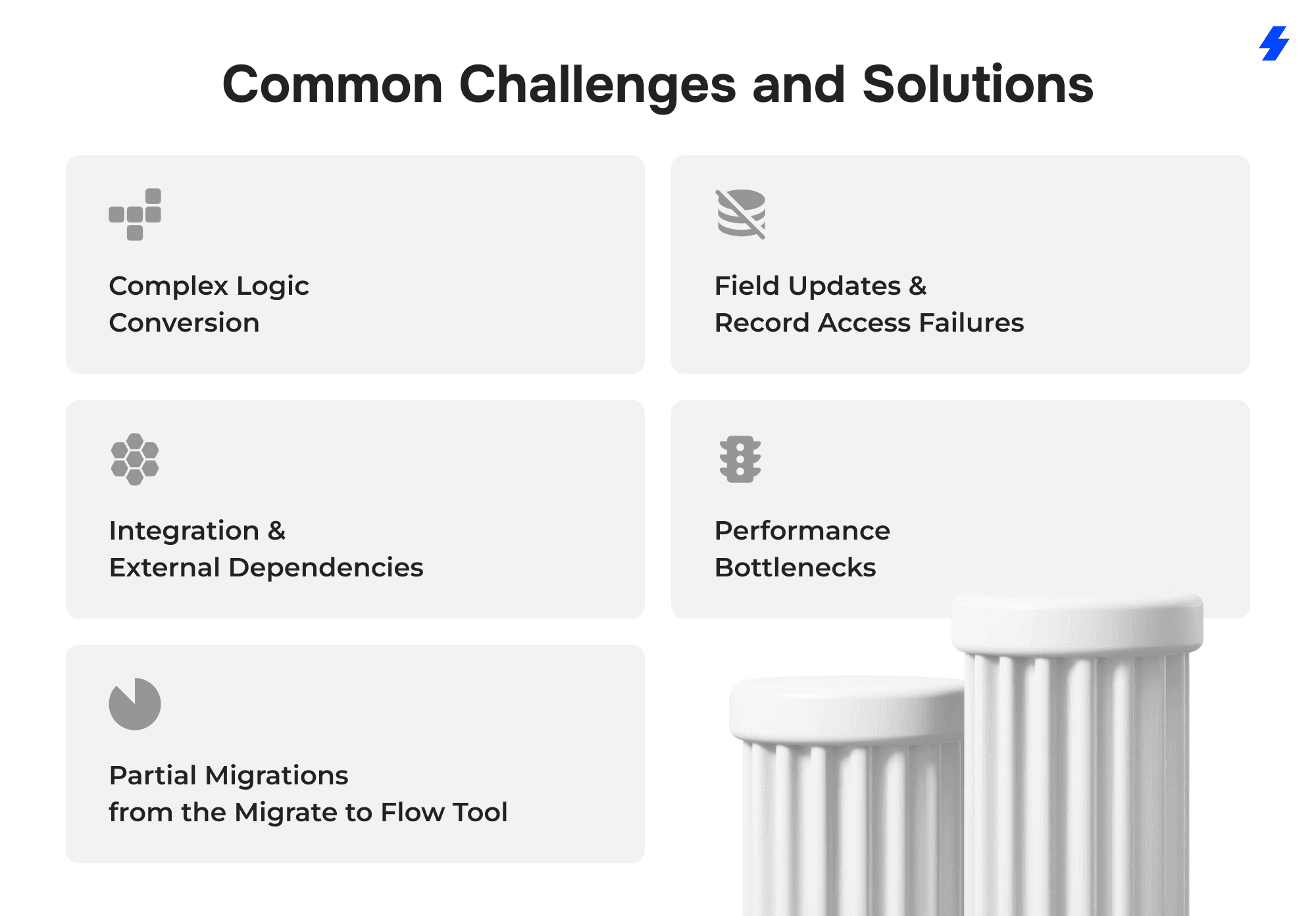
1. Complex Logic Conversion
Challenge:
Process Builder can contain multiple decision branches, recursive criteria, or combined actions that do not translate directly into Flow. When migrated automatically, these often result in nested or disorganized Decision elements that are difficult to maintain or troubleshoot.
Solution:
Rebuild complex branches manually in Flow using Decision, Assignment, and Subflow elements. Break large processes into smaller, reusable subflows that handle distinct parts of the logic (for example, validation, updates, and notifications). This modular structure improves readability and reduces the risk of flow element limits or performance issues.
Best practice: Map the logic visually before building it in Flow, and validate each condition independently using the Flow debugger.
2. Field Updates and Record Access Failures
Challenge:
Flows frequently fail because users cannot update or access fields for which they lack proper permissions. Unlike Process Builder, which sometimes bypasses certain access restrictions, Flow strictly enforces Field-Level Security (FLS) and CRUD permissions.
Solution:
Review and align user permissions with the Flow’s object access requirements. For background processes, consider setting the Flow to run in System Context without sharing, but only when appropriate and secure.
Verification steps:
- Check FLS via Profile or Permission Set
- Use the “View All Data” or “Modify All Data” permissions only if operationally necessary
- Implement error handling paths that log or notify admins of access-related failures
Integration and External Dependencies
Challenge:
Some Process Builders invoke outbound messages or call Apex actions that trigger integrations with external systems, making it crucial to migrate workflow rules effectively. When migrated, these dependencies can fail due to missing invocable actions or incorrect API configurations in Flow.
Solution:
Identify all integrations during pre-migration audits. Rebuild them using Invocable Actions, HTTP Callout Actions, or Apex subflows where applicable. Test integrations in a sandbox to confirm authentication, endpoint accessibility, and payload formats.
If the process relies on scheduled or asynchronous integrations, use Scheduled Paths or Autolaunched Flows with asynchronous Apex to prevent execution limits.
Best practice: Create a dedicated integration test Flow to isolate and validate API behavior before deployment.
4. Performance Bottlenecks
Challenge:
Flows processing large data volumes can hit governor limits or cause execution delays. Process Builder executed sequentially but often inefficiently, while poorly optimized Flows can still consume excessive CPU time or perform redundant DML operations.
Solution:
Apply bulkification and query optimization principles:
- Use before-save record-triggered Flows for same-record updates (they execute about 10x faster than after-save)
- Avoid Get Records or Update Records inside loops - collect records first, then update in bulk
- Combine related logic in one Flow per object to minimize triggers
- For high-volume updates, replace real-time logic with Scheduled Flows that run during off-peak hours
Monitoring tip: Use Debug Logs and Flow Interview reports to track CPU usage and identify long-running Flows.
5. Partial Migrations from the Migrate to Flow Tool
Challenge:
Salesforce’s Migrate to Flow tool does not fully support all Process Builder actions, especially those with complex formulas, cross-object references, or record type conditions. The tool may mark some processes as “Partially Migrated,” leaving certain actions unconfigured.
Solution:
Review the Needs Review section after each migration. Open the resulting Flow in Flow Builder and complete the missing actions manually. Common fixes include re-adding Decision logic, adjusting field references, or rebuilding unsupported actions (such as long text updates or record-type filters).
Recommendation: Treat the Migrate to Flow tool as an accelerator, not a full automation replacement. Every migrated Flow should undergo a manual review before activation.
Post-Migration KPIs
Once your Flows are live, use these KPIs to assess performance, reliability, and business impact. These metrics help validate success and identify areas for improvement.
Benefits of Migrating to Flow
Migrating to Salesforce Flow is more than just a necessary response to retiring automation tools; it’s a strategic upgrade that brings performance, flexibility, and long-term platform alignment. With Salesforce officially ending support for Workflow Rules and Process Builder by December 31, 2025, teams that act early can modernize their automation while minimizing disruption and risk.
Future-Proof Automation
Salesforce has confirmed that all new automation features going forward will be built exclusively in Flow. Both Workflow Rules and Process Builder will no longer be supported, and creation of new processes using these tools is already disabled in many orgs. Flow, on the other hand, is central to Salesforce’s roadmap, with ongoing enhancements like Flow Orchestration, Reactive Screen Components, and native HTTP Callouts. Migrating now ensures your automation remains aligned with the platform’s evolution and avoids technical debt in 2026 and beyond.
Advanced Automation Capabilities
Flow offers a level of logic complexity that Process Builder simply wasn’t built to handle. It supports collections and loops for bulk data processing, subflows for modular design, and invocable actions to call Apex or other flows. With features like HTTP Callouts in Flow, you can now connect to external systems without writing any code. Whether you need to update child records, trigger notifications, or integrate with third-party APIs, Flow gives you the tools to build sophisticated automations that were previously only possible with Apex.
Improved Maintainability
Flow is built for scale and ongoing maintenance. Unlike Process Builder, Flow includes an interactive debugger, which allows admins to test logic step-by-step and inspect variables in real time. Errors can be handled explicitly with fault paths, and reusability is greatly improved through subflows. These capabilities reduce duplication, make logic easier to understand, and allow admins to troubleshoot without developer intervention. In larger orgs, where multiple teams rely on automation, this clarity and control can dramatically reduce downtime and support load.
Higher Performance
Salesforce Flow is designed with performance in mind. Using before-save record-triggered flows, teams can update fields up to 10 times faster than after-save logic, thanks to reduced DML operations. Flow also handles large data volumes more efficiently using collections and loop batching, helping teams avoid hitting governor limits. These performance gains are especially noticeable in high-volume environments where legacy automation has contributed to slow record saves or inconsistent behavior. With Flow, automations can scale with your business without creating friction in day-to-day operations.
Compliance and Auditability
For regulated industries, visibility and traceability are critical. Flow supports this through detailed logging and error tracking, giving admins full transparency into how automations are triggered and what they do. You can also create custom logging frameworks using Flow to capture execution data, errors, and outcomes in a structured, reportable way. This makes it easier to support audit requirements, investigate issues, and maintain operational integrity across business-critical processes.
Why Choose MagicFuse for Migration
Migrating from Process Builder to Flow is a critical step toward future-proofing your Salesforce org. With tight timelines and complex dependencies, you need a partner who brings both technical depth and delivery excellence. That’s where MagicFuse comes in.
Certified Salesforce Expertise
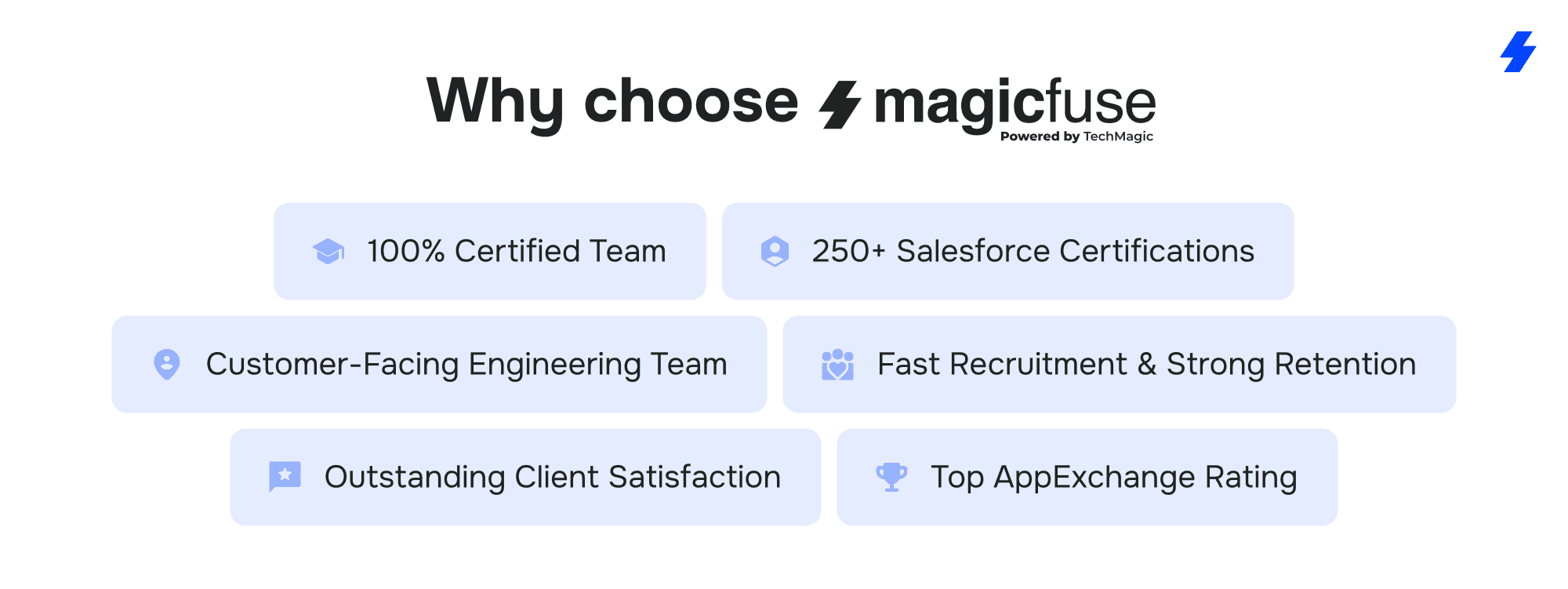
Our entire engineering team is Salesforce-certified, bringing deep platform knowledge to every migration project. With over 250 certifications, including Data Cloud Consultant, Experience Cloud Consultant, and B2B Solution Architect, we stay aligned with the latest innovations so you don’t fall behind.
Proven Results at Scale
We’ve led large-scale Salesforce migrations across industries, combining structured planning, sandbox testing, and performance optimization to ensure smooth transitions. Every migration includes pre-assessment, validation, and post-deployment monitoring.
Direct Access to Engineers
We remove communication bottlenecks. Our clients work directly with the engineers building their solutions, no hidden layers, no delays. This ensures faster iterations, better alignment, and more reliable outcomes.
Strong Team, Long-Term Support
We recruit top talent quickly, within 6 weeks on average, and retain them long-term, with engineers staying over 3 years. This consistency brings deep system familiarity and lower ramp-up time for your projects.
Trusted by Salesforce Customers
With a Net Promoter Score of 92% and a 4.9-star rating on AppExchange, we’re recognized for delivering exceptional client experiences and reliable results. Our track record reflects our commitment to quality, speed, and transparency.
If you're planning your migration or need expert help optimizing your Salesforce automation, contact the MagicFuse team for a personalized consultation. We'll help you assess your current setup and design a step-by-step plan tailored to your goals.
FAQs
- Why is Salesforce retiring Process Builder?
Salesforce is retiring Process Builder to consolidate all automation into a single, more powerful framework - Salesforce Flow. Flow offers better performance, advanced capabilities like loops and subflows, and greater flexibility for complex automation. Starting in 2025, Process Builder will no longer be supported, and users are encouraged to migrate existing processes to Flow to ensure long-term compatibility.
- How do I identify which Process Builder workflows to migrate first?
Start by auditing all active Process Builders. Prioritize those that are:
1 - Frequently triggered 2 - Tied to business-critical processes 3 - Complex or difficult to troubleshoot 4 - Causing performance issues
Tools like Salesforce Optimizer, Object Manager, or custom metadata exports can help build a complete inventory. Focus first on flows tied to high-usage objects like Opportunity, Case, or Lead.
- Can all Process Builder actions be replicated in Flow?
Almost all Process Builder functionality can be replicated, and often improved, in Flow. Flow supports the same core actions (field updates, record creation, email alerts), plus more advanced features like loops, platform events, and HTTP callouts. Some Process Builder logic (e.g. cross-object updates or formula-heavy criteria) may require manual rebuilding or Apex integration, but there is always a declarative path or workaround.
- What are the best practices for testing flows before deployment?
1 - Use a full sandbox to mirror production data and permissions 2 - Run test cases that cover common, edge, and failure scenarios 3 - Validate decision logic, record updates, and integration behavior 4 - Use the Flow Debugger and Fault Paths to track execution 5 - Confirm that user profiles have proper FLS and object permissions 6 - Perform UAT with actual business users when possible
Always test with different user roles and data combinations to uncover access or logic gaps before go-live.
- How long does it typically take to migrate complex processes?
Migration timelines depend on the number of flows, complexity, and testing scope. For example:
Simple processes: 1–2 hours to rebuild and test Medium complexity (e.g., scheduled actions, cross-object logic): 1–2 days Enterprise migrations involving 50+ flows: several weeks to months, especially with change management and regression testing
Using a structured migration plan and reusable subflows can significantly reduce total effort.
- Can MagicFuse help automate the migration for multiple processes at once?
Yes. MagicFuse offers structured, end-to-end migration services, from audit and prioritization to sandbox testing and production deployment. We can help identify which automations can be partially migrated using Salesforce’s Migrate to Flow tool, and which should be rebuilt manually for better performance and maintainability. Our engineers also create reusable components and subflows to speed up large-scale projects without compromising quality.