








When sales work lives in Salesforce and delivery work lives in Asana, details slip, deadlines drift, and handoffs stall. Connecting the two puts tasks, owners, and status in one rhythm. With Asana for Salesforce, you can create new Asana tasks from Leads, Opportunities, and Cases, launch onboarding projects when a deal changes stage, and view progress without leaving Salesforce (keep in mind that it only works if users have the proper licenses, permissions, and workspace access).
Teams feel the difference in day-to-day work as they collaborate more effectively. Sales stops chasing updates. Marketing sees campaign execution next to the pipeline. Support converts Cases into follow-up tasks that actually move. Leaders get cleaner reporting and fewer surprises.
Here is what this guide covers: a clear overview of the integration, prerequisites, step-by-step installation from AppExchange, object mapping and trigger setup, a testing checklist, rollout tips, high-impact use cases across sales, marketing, operations, and support, and more.
Why Integrate Asana with Salesforce?
Integrating Asana with Salesforce connects two systems that sales and project teams rely on every day but often use in isolation. Salesforce serves as the central hub for managing leads, opportunities, and customer data, while Asana is where the actual work happens - tasks are assigned, deadlines set, and deliverables tracked. When these platforms remain separate, information must be re-entered manually, updates can be lost, and teams operate without a clear view of post-sale activities. Connecting them bridges that gap and automates key processes, improving coordination across operations, sales, marketing, and support. However, while the official connector syncs most tasks and updates between the two systems, some fields and attachments may not transfer automatically.
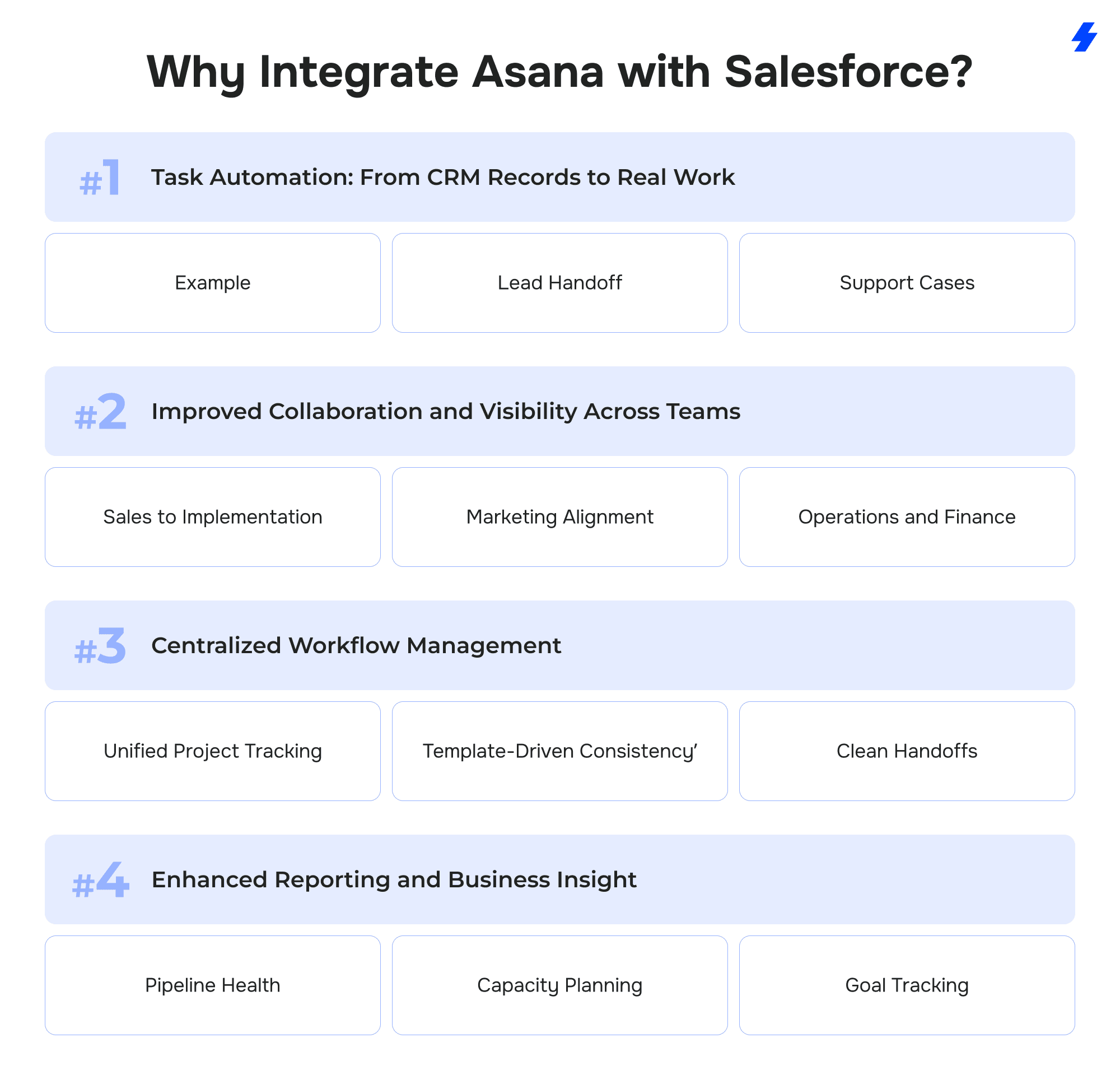
1. Task Automation: From CRM Records to Real Work
With the Asana for Salesforce connector, you can configure rules so that specific Salesforce events automatically generate tasks or even entire projects in Asana. However, this automation only works if Salesforce Flow or Process Builder is correctly configured and the corresponding Asana templates already exist.
- Example: When a sales rep moves an Opportunity to Closed Won, the integration can trigger an onboarding project in Asana with predefined subtasks: account setup, implementation calls, training sessions. No one needs to manually re-enter client details.
- Lead Handoff: When a new Lead is created in Salesforce, an Asana task can be assigned to the right sales development rep for follow-up, keeping early-stage opportunities from slipping through.
- Support Cases: Customer success managers can have Asana tasks automatically created as soon as a Salesforce Case is logged, ensuring follow-ups are tracked and resolved promptly. This functionality, however, depends on automation rules being configured to prevent duplicate triggers.
This automation removes double data entry, which is a major time drain. A Salesforce study found that sales reps spend up to 72% of their time on administrative tasks rather than selling. Automating the creation of action items helps reclaim that time and reduces errors.
2. Improved Collaboration and Visibility Across Teams
Sales doesn’t work in a vacuum, and neither should your tools, especially when it comes to the hand off between teams . Once Salesforce and Asana are connected, teams that normally rely on periodic check-ins or email updates gain real-time visibility into each other’s work.
- Sales to Implementation: Account executives can see how onboarding tasks are progressing in Asana without leaving Salesforce. If a client asks about setup timelines, reps can give accurate updates instantly.
- Marketing Alignment: When marketing campaigns tied to Salesforce Campaigns are managed in Asana, sales and marketing can see status, deadlines, and blockers in one place. Marketers know which Opportunities are tied to their campaigns and can adjust strategy faster.
- Operations and Finance: Non-sales departments that still impact the customer journey (legal, compliance, billing) get access to Asana tasks tied directly to Salesforce records. They can contribute without constantly requesting updates.
This transparency helps eliminate the “black box” effect between pre-sale and post-sale work. Forrester reports that companies with strong sales-marketing alignment see up to 36% higher customer retention and 38% higher sales win rates, and can achieve the kind of gains that come from shared visibility.
3. Centralized Workflow Management
Without integration, Salesforce tracks what’s happening with customers while Asana tracks what’s happening internally. Linking them gives you a single source of truth for work tied to revenue.
- Unified Project Tracking: Each Salesforce record (Lead, Opportunity, Account, or Case) can be linked to a specific Asana project or task. Teams can attach files, add comments, and log updates directly against that record.
- Template-Driven Consistency: Sales and customer success can use standardized Asana templates that trigger automatically at certain Salesforce stages. For example, an “Enterprise Onboarding” template could include technical setup, training, and account management tasks, ensuring no step is missed.
- Clean Handoffs: Once a deal closes, implementation teams see the full customer history in context. No more relying on scattered notes or forwarded emails.
This centralized approach cuts down on miscommunication and project delays, which are among the most common reasons enterprise implementations run over time.
4. Enhanced Reporting and Business Insight
Integration also improves how you measure performance. Salesforce dashboards can pull in task and project data from Asana, so leadership sees how sales activity connects to delivery and long-term customer success.
- Pipeline Health: Combine Salesforce opportunity stages with Asana project status to know if deals are stalling in post-sale execution.
- Capacity Planning: See how many active onboarding or implementation tasks your team is managing and adjust resource allocation before bottlenecks happen.
- Goal Tracking: Asana Goals can be tied directly to Salesforce metrics, such as revenue or customer expansion, eliminating the need for manual updates to track progress. However, native goal syncing is not currently supported and may require additional configuration, use of the Asana API, or a third-party integration tool.
This reporting clarity supports better decision-making. A study by McKinsey found that organizations integrating project data with CRM insights can improve project delivery speed by 20–30% and reduce customer churn.
Step-by-Step Setup Guide to Asana Integration with Salesforce
Integrating Asana with Salesforce is not just a plug-and-play task. A solid setup requires planning, the right permissions, and careful configuration so your teams can rely on accurate data and automation. Below is a deep, practical guide that covers everything from preparation to company-wide rollout, including technical details, best practices, and troubleshooting tips.
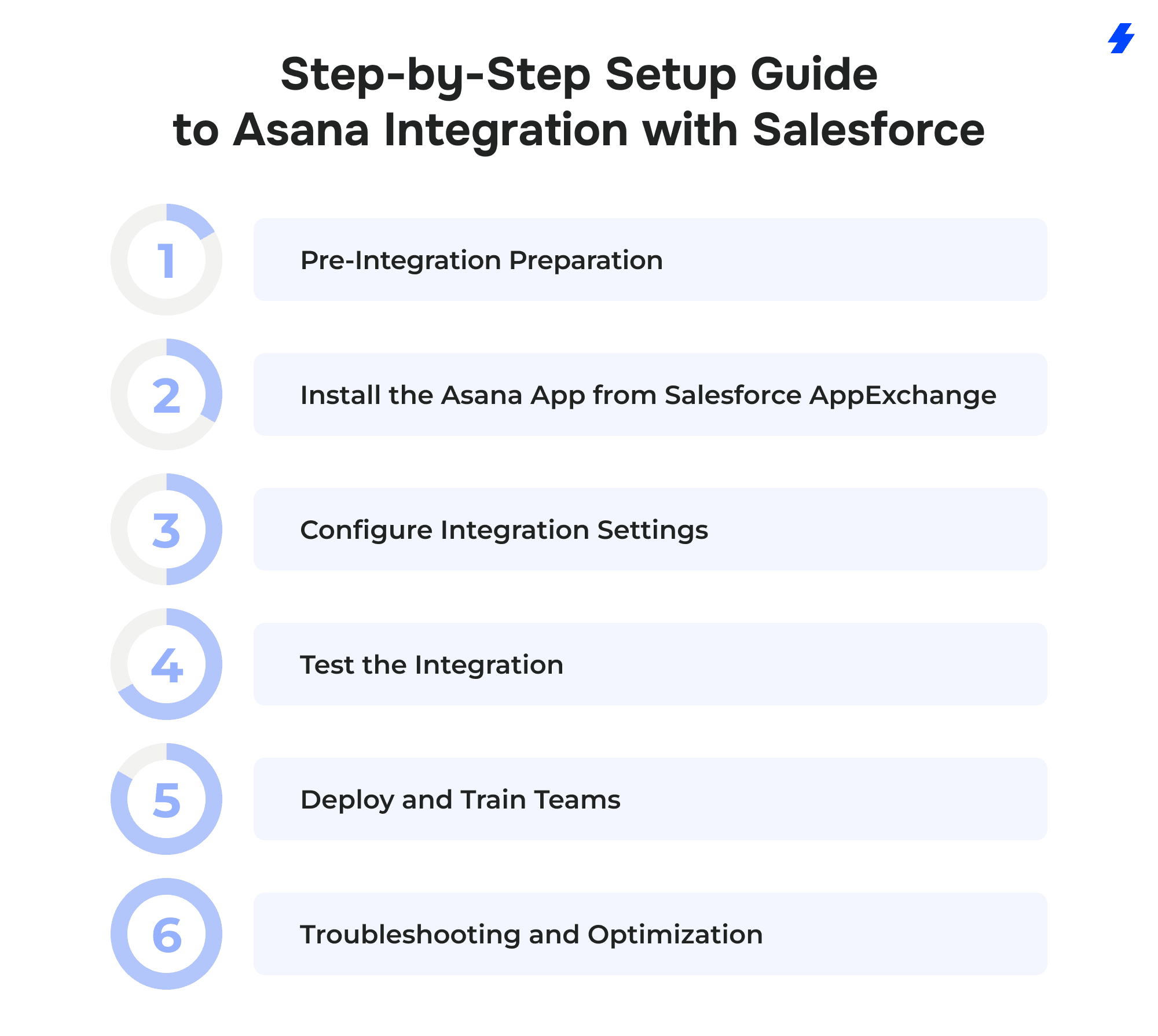
1. Pre-Integration Preparation
Confirm Edition and Licensing Requirements
- Salesforce: The Asana connector works with Enterprise and Unlimited editions. If you use Professional or lower, you’ll need to upgrade or use a third-party tool (e.g., Zapier, Workato, or Tray.io).
- Asana: The connector is available for Advanced, Enterprise, and Enterprise+ tiers (legacy Business and Enterprise also supported).
- Access: You must be a Salesforce System Administrator and have an Asana admin or a user with integration permissions.
Audit User Accounts and Permissions
- Check that all Salesforce users who will trigger or view tasks have active Asana accounts.
- Standardize email addresses — mismatches (e.g., jane@company.com vs jane.doe@company.com) cause sync errors.
- Verify Salesforce profiles and permission sets so users can access the Asana component and trigger automation.
Map Your Workflow Before Touching Settings
- Objects: Decide which Salesforce records you’ll sync; common choices: Opportunities → Implementation projects, Leads → SDR follow-ups, Cases → Customer success tasks, Accounts → Strategic project tracking.
- Triggers: Define when work should start (e.g., “Opportunity moves to Closed Won,” “Lead converted”).
- Ownership: Decide who receives tasks: the record owner, a queue, or a shared project team.
- Templates: Prepare Asana project templates (e.g., “Enterprise Onboarding” or “New Campaign Launch”) for consistent execution.
Pro tip: Keep your first automation simple, such as creating one onboarding project when a deal closes, then expand to more triggers once the team is comfortable.
2. Install the Asana App from Salesforce AppExchange
- Go to Asana for Salesforce on AppExchange.
- Click Get It Now, choose Production or Sandbox. Always test in Sandbox if you can.
- Log in with your Salesforce admin credentials and accept the installation terms.
- Select Admins Only for initial testing. Later, you can expand access to All Users or Specific Profiles.
- Approve third-party access when prompted.
- Wait for the package to finish installing (may take several minutes).
Common Install Issues and Fixes
- If the installer hangs, switch browsers or clear cache.
- Ensure your user profile has the Download AppExchange Packages permission.
- Installation fails if your Salesforce org has restricted package installs, check with your IT/security team.
3. Configure Integration Settings
After installation, you’ll connect your Asana workspace and define how Salesforce records translate into tasks or projects.
Link Asana to Salesforce
- In Salesforce Setup, go to Installed Packages → Asana for Salesforce → Configure.
- Log in to Asana when prompted and grant access to your workspace.
- Choose the correct workspace (many companies have multiple).
- Confirm the connection — a success message will appear.
Add Asana to Your Page Layouts
- Open the Lightning App Builder.
- Add the Asana Tasks & Projects component to key objects (e.g., Opportunity, Case, Account).
- Save and activate the new page layout so users see Asana tasks inline.
Define Triggers and Field Mappings
Use Salesforce Flow Builder or Process Builder to create automation. Example: “When Opportunity Stage = Closed Won → create new project in Asana using the ‘Client Onboarding’ template.” Then, map Salesforce fields to Asana fields:
- Opportunity Name → Project Name
- Close Date → Due Date
- Owner → Assignee
- Custom fields (industry, ARR) → Asana custom fields
You can also set subtasks, assignees, and deadlines automatically if you’re using structured Asana templates.
Tip: Keep field names consistent (e.g., use “Client Name” across both platforms) to avoid data mismatch.
Security Considerations
Only Asana users with the appropriate workspace access will be able to view synced tasks. Likewise, Salesforce enforces record-level security - if a user doesn’t have access to an Opportunity, they won’t see its linked Asana tasks.
To maintain data integrity and confidentiality, review and limit Asana project visibility when working with sensitive accounts. Additionally, ensure that workspace- and project-level permissions in Asana are regularly reviewed to avoid unintentionally exposing sensitive tasks or information.
4. Test the Integration
Before rolling out to the whole company, validate the setup with a controlled test.
- Run test scenarios: Create a fake Opportunity or Case and move it through your trigger stages.
- Verify data flow: Check that the Asana project or task appears with the correct name, assignee, due date, and any mapped fields.
- Update records: Change a Salesforce field (e.g., Opportunity Stage) to see if Asana updates correctly.
- Permission check: Log in as a non-admin user to ensure the Asana component displays correctly.
- Edge cases: Try closing an Opportunity owned by someone who doesn’t have an Asana account to test how the system handles it, whether it assigns the related task or project to a default user or returns an error. The specific behavior depends on the connector’s configuration; in many cases, it will automatically assign the task to a designated default user if the original owner isn’t linked to Asana.
If tasks aren’t syncing, revisit Flow settings or field mappings. Common causes: missing Asana permissions, mismatched field names, or unlicensed users.
5. Deploy and Train Teams
Roll Out Gradually
- Start with a pilot team (e.g., Enterprise Sales or Customer Success) before expanding org-wide.
- Monitor how the integration affects workflow and adjust triggers to avoid noise.
Educate Users
- Create quick internal guides: “How to view Asana tasks inside Salesforce,” “When a new deal closes, here’s what happens automatically.”
- Record a short Loom video walking through the new page layout and workflow.
- Offer a Q&A session or training call for each department.
Establish Ownership
- Assign a Salesforce admin (or RevOps lead) to maintain the integration.
- Set a review cadence to audit field mappings, triggers, and adoption.
Track Success
- Monitor: Task/project creation volumes, duplicate tasks or failed sync logs, time saved (survey reps: “How often do you manually create tasks now vs. before?”).
- Feed these insights back to leadership to prove ROI.
Troubleshooting and Optimization
- Duplicate tasks: Usually caused by overlapping triggers in Flow Builder. Simplify and consolidate rules.
- Data mismatch: Recheck field mapping and ensure both sides use the same naming/format (e.g., picklists vs free text).
- Slow load times: Large Asana workspaces may slow the Salesforce component. Archive old projects or split into smaller workspaces.
- Low adoption: Provide clear documentation and show reps how this saves manual effort.
Key Asana Integration with Salesforce Use Cases
Once Asana and Salesforce are connected, the impact shows up differently across teams. The integration is not just about saving clicks; it’s about removing the invisible friction that happens when sales, marketing, operations, and support work in separate systems. Here’s how it plays out in real scenarios.
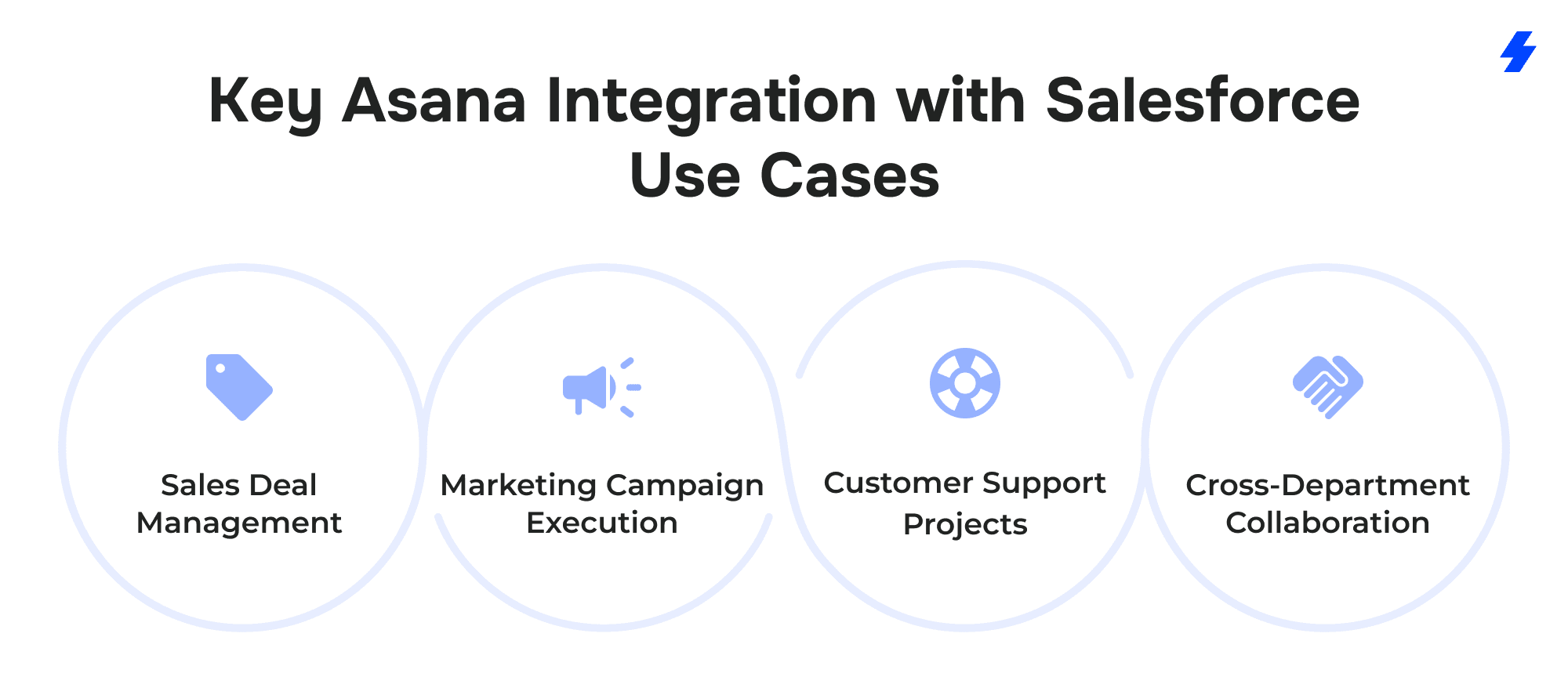
Sales Deal Management
Sales teams often see the clearest and fastest return. When a new Opportunity is created or reaches a critical stage, such as Proposal Sent or Closed Won, the integration can create a linked Asana project with every task required to move the deal forward or deliver the product or service. Instead of copying details into spreadsheets or sending long handoff emails, the information stored in Salesforce flows into a structured Asana project template.
A sales representative who has just closed a large enterprise deal can watch an entire onboarding plan appear in Asana within seconds. Tasks are automatically assigned to implementation engineers, customer success managers, and account coordinators. This turns what used to be a slow, manual transition into a clean handoff that keeps revenue momentum moving.
Marketing Campaign Execution
Marketing teams use the integration to run campaigns with better visibility and accountability. When a new Salesforce Campaign is created, the campaign name, target accounts, owners, and key dates can trigger the creation of an Asana project that contains the steps required to execute the campaign. Managers no longer rely on static spreadsheets or periodic sales updates to track progress.
If priorities shift in Salesforce because sales need to focus on a new market segment, those updates can influence the active campaign plan in Asana. A SaaS marketing department, for example, might connect every demand generation campaign to an Asana project that tracks asset creation, ad approvals, and webinar scheduling while staying synced with lead and opportunity data coming from Salesforce.
Customer Support Projects
Customer support and post-sales teams gain control over complex client follow-up work. When a Case is opened in Salesforce, the integration can create a task in Asana that includes the customer’s contact details, the issue description, and any attachments. Support managers can immediately assign that task to the right engineer or specialist and follow progress in real time.
If the Case is escalated or its status changes in Salesforce, the connected Asana task updates automatically. Imagine a support agent logging a technical problem for a key account: an Asana task appears in the engineering team’s queue with the right priority and due date, avoiding lost tickets and endless back-and-forth emails.
Cross-Department Collaboration
Operations and other cross-functional groups benefit from the shared visibility this connection creates. Many companies struggle when a customer journey spans several teams: sales closes the deal, marketing runs enablement, finance handles contracts, and customer success manages delivery.
By embedding Asana tasks and projects directly into Salesforce records, everyone sees the same progress without jumping between systems. An operations manager can spot delays in an implementation project linked to a high-value account, while a sales executive can check onboarding status from inside Salesforce during a client call. This eliminates status meetings and long email chains while keeping every department aligned.
Asana Integration Best Practices
A successful Asana–Salesforce connection is not just about installing the package and flipping it on. The quality of the integration depends on how clearly it is planned, maintained, and taught to the people who will use it every day. The following practices help companies get long-term value rather than a quick technical link that fades into disuse.
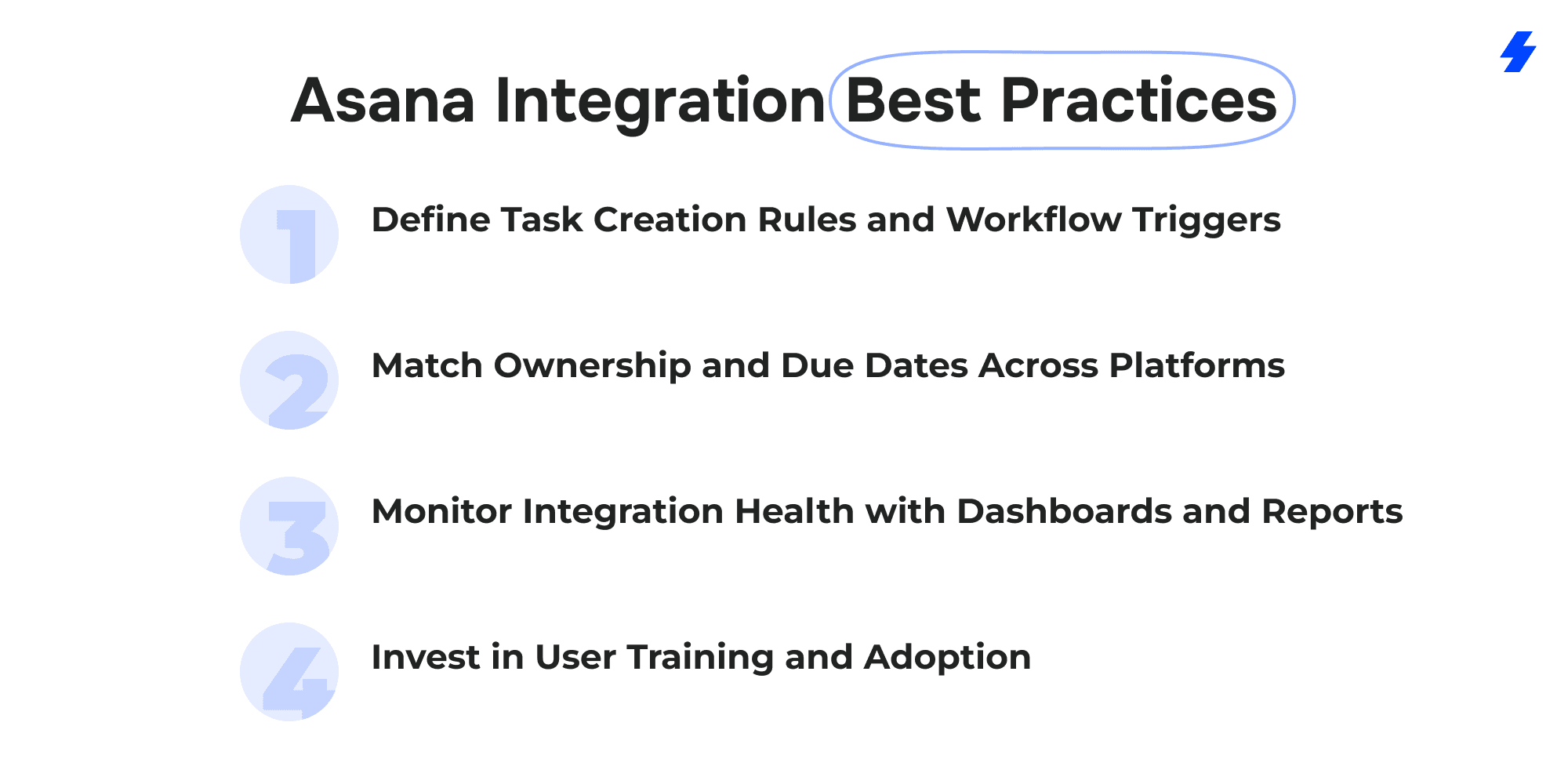
Define Task Creation Rules and Workflow Triggers
Clarity is critical before you build any automation. Decide exactly which Salesforce events should create work in Asana and which should not. Many teams start by triggering a new project or task only when an Opportunity hits a key milestone, such as Closed Won or Implementation Needed. Over-automation leads to clutter and duplicated effort, so start with a few impactful triggers and expand gradually.
Map each trigger to an Asana template or project that matches the process you want to standardize. For example, an “Enterprise Onboarding” template might include technical setup, contract finalization, and training calls. Using consistent templates prevents missed steps and keeps reporting clean.
Match Ownership and Due Dates Across Platforms
Workflows stay reliable when task responsibility in Asana mirrors the record ownership in Salesforce. If an Opportunity owner is the main contact for onboarding, map that field to the task assignee. When a Case is created, assign it automatically to the support specialist listed in Salesforce.
Apply the same logic to dates. If an Opportunity has a Close Date, use that field to set the Asana project’s due date or milestones. This keeps sales and delivery timelines synchronized and avoids conflicting deadlines.
Monitor Integration Health with Dashboards and Reports
Do not assume that once connected, the system will run forever without issues. Use Salesforce dashboards to track how many tasks and projects are being created through the integration and to spot trends such as duplicate records or missing assignments.
In Asana, review project dashboards to see if tasks are being completed on schedule and if owners are engaging with the synced work. Regularly auditing these reports helps catch misconfigurations early, such as tasks failing to generate or assignments going to inactive users.
Invest in User Training and Adoption
The best technical setup fails if users do not understand how to work within it. Hold short training sessions for both Salesforce and Asana users. Show sales reps how to view project progress directly in Salesforce without leaving the platform, and teach project managers how to trace tasks back to the original Salesforce record for context.
Provide simple guides or short videos that demonstrate what happens when a record changes stage or a Case is opened. This reduces confusion and builds confidence that the integration saves time instead of adding complexity.
Common Pitfalls & Solutions
Even well-designed integrations can encounter obstacles. Knowing the most frequent issues helps avoid rework and frustration.
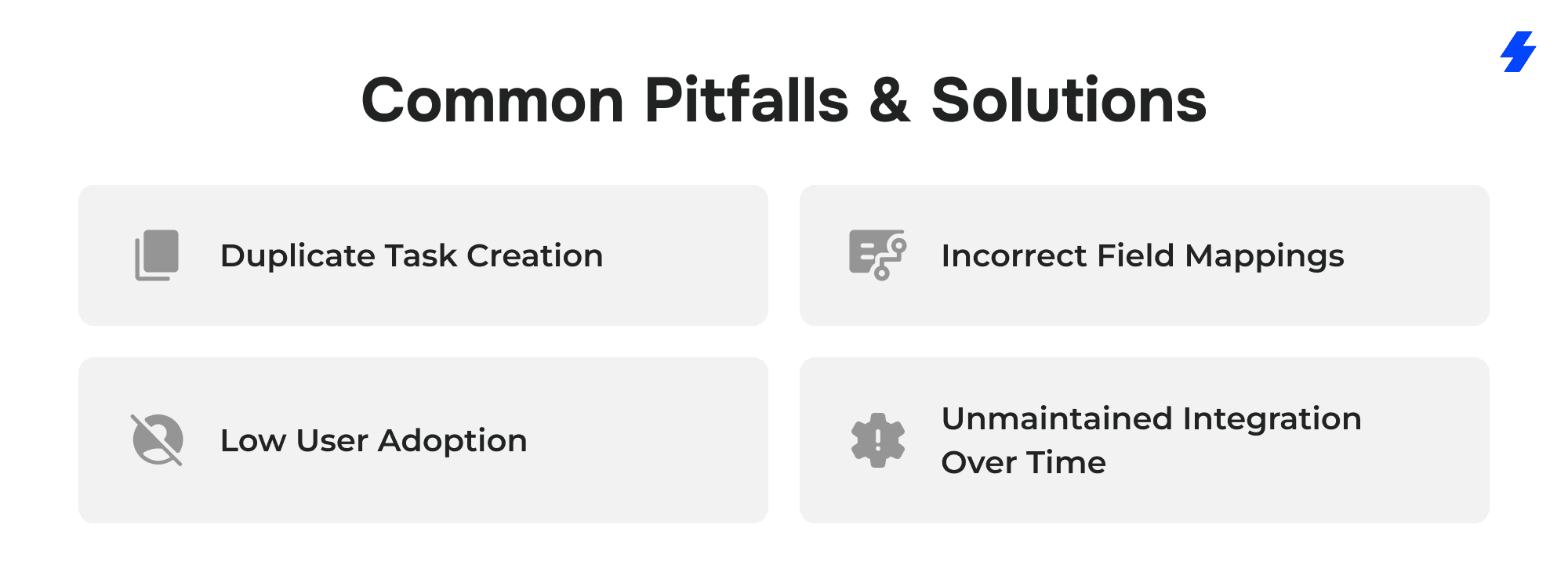
Duplicate Task Creation
This happens when multiple automation flows trigger at the same event. For example, a Flow might create a project when an Opportunity is marked Closed Won, while a Process Builder rule does the same. The result is two identical projects for one deal.
Solution: Audit your automation logic before going live. Keep a single trigger per object and consolidate overlapping rules. Test new flows in a Sandbox first to confirm only one project or task fires.
Incorrect Field Mappings
A common problem occurs when Salesforce fields do not match Asana’s structure. For instance, a picklist field in Salesforce mapped to a free-text field in Asana can break automation or cause data loss.
Solution: Standardize naming and field types where possible. During setup, carefully map each Salesforce field to the appropriate Asana field. Revisit these mappings whenever your Salesforce schema changes.
Low User Adoption
Some teams ignore the new system if it feels confusing or adds steps. Sales reps may continue sending manual emails or managing tasks in spreadsheets, undermining the whole point of the integration.
Solution: Roll out gradually with clear training and show immediate benefits. Start with one high-impact workflow (such as onboarding after a Closed Won deal) so users can see the time saved. Collect feedback early and adjust the setup before scaling to other teams.
Unmaintained Integration Over Time
Integrations often break when systems evolve. New Salesforce fields, process changes, or Asana workspace restructuring can silently disrupt automation.
Solution: Assign an owner to maintain the connection. Review triggers and field mappings quarterly, check reports for anomalies, and update workflows as business processes change.
Why Choose MagicFuse?
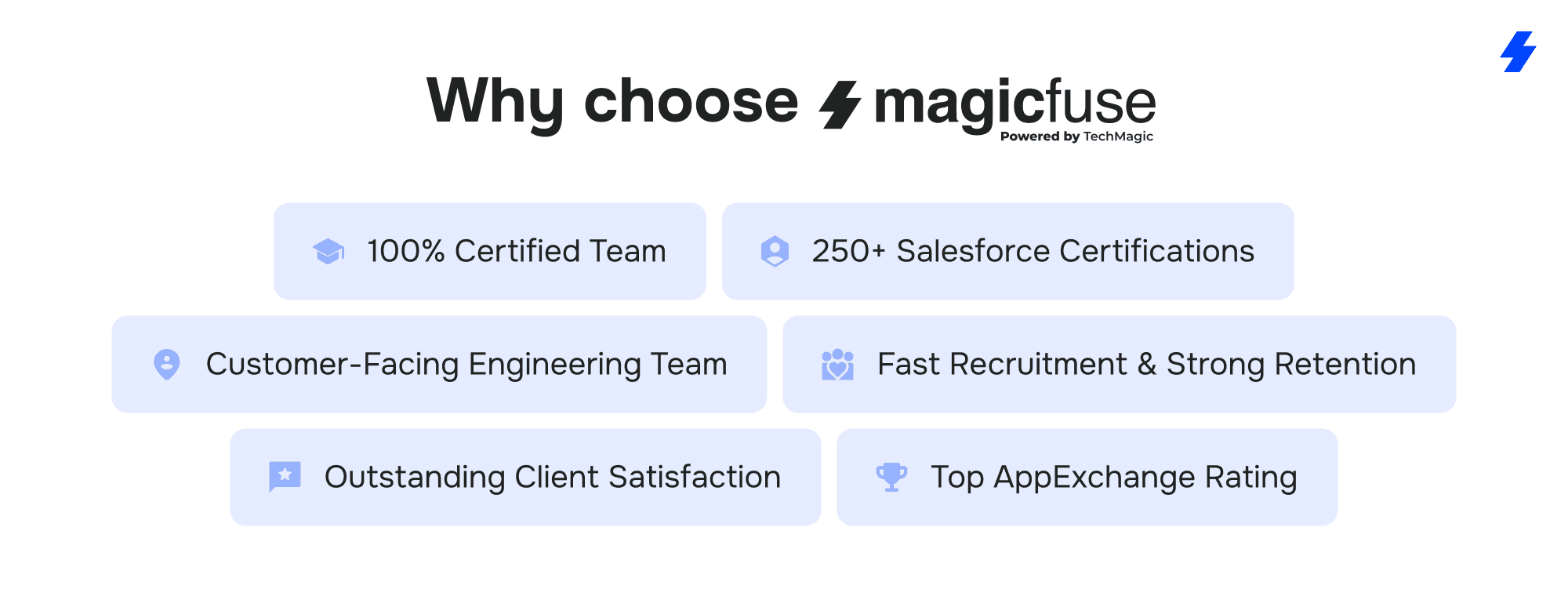
100% Certified Team
Our entire engineering team holds Salesforce certifications, ensuring expert-level knowledge and proven skills to deliver reliable, high-quality solutions.
250+ Salesforce Certifications
With over 250 certifications earned, including recent ones like Experience Cloud Consultant, Data Cloud Consultant, B2B Solution Architect, AI Specialist, and more, we stay at the forefront of Salesforce innovations to meet your evolving needs.
Customer-Facing Engineering Team
We believe in full transparency. Our clients have direct access to our engineers and resources, with no hidden layers, enabling smooth communication and collaborative problem-solving.
Fast Recruitment & Strong Retention
We recruit top Salesforce experts quickly, averaging 6 weeks per hire, while maintaining strong employee retention of over 3 years to provide consistent expertise on your projects.
Outstanding Client Satisfaction
Our commitment to quality is reflected in an impressive Net Promoter Score of 92%, showing that clients trust and recommend our services.
Top AppExchange Rating
With a stellar 4.9-star rating on Salesforce AppExchange, we demonstrate consistent excellence and customer satisfaction in the Salesforce ecosystem.
Ready to integrate Asana with Salesforce and streamline your sales-to-delivery workflows?
Contact MagicFuse today and let our 100% certified Salesforce experts set it up for you - fast, reliable, and fully customized for your team.
FAQs
- What is the Asana + Salesforce integration and how does it work?
The Asana + Salesforce integration connects Salesforce records with Asana tasks and projects so teams can move from deal or case tracking to real project execution without manual data entry. Using the official app available on the Salesforce AppExchange, Salesforce admins can add an Asana component to objects like Opportunities, Leads, Accounts, and Cases.
When a record reaches a defined stage, Salesforce can automatically create a task or a full project in Asana. Users working in Salesforce can see the linked Asana tasks, check progress, and comment directly without switching apps, while Asana users get real-time context from the associated Salesforce data.
- How can this integration improve team productivity and workflow efficiency?
By removing manual updates and scattered communication through a two way integration, the integration saves time and prevents errors. Sales reps no longer re-enter deal details into project plans. Implementation teams start work as soon as a deal closes, with a prebuilt onboarding template ready in Asana.
Marketing can react faster by linking live Salesforce campaign or pipeline data to their Asana plans. Support teams respond to cases faster because every new Salesforce Case can create a follow-up task for engineering or customer success.
Research shows that sales professionals spend up to two-thirds of their time on administrative tasks rather than selling (Salesforce State of Sales). Automating project creation and syncing updates between platforms cuts that manual work and speeds up handoffs. It also gives leaders real-time dashboards that combine sales progress with delivery status, which helps avoid bottlenecks and improves forecasting accuracy.
- Which Salesforce objects can be mapped to Asana projects and tasks?
The integration supports Opportunities, Leads, Accounts, and Cases by default, but admins can also connect custom Salesforce objects if needed. For example:
Opportunities → trigger customer onboarding or implementation projects.
Leads → create tasks for sales development follow-ups.
Cases → generate tasks for support or engineering teams.
Accounts → link long-term client success projects or strategic initiatives.
Custom fields can also be mapped, such as deal size, product type, or region, to populate Asana tasks with meaningful context.
- Can MagicFuse implement and customize Asana Salesforce integration for my business?
Yes. MagicFuse specializes in Salesforce consulting and can handle everything from planning the integration architecture to installing and customizing it for your workflows. This includes:
1 - Auditing your Salesforce setup to choose the right objects and triggers.
2 - Building automation flows using Salesforce Flow Builder or Process Builder.
3 - Creating Asana templates that match your sales, marketing, or support processes.
4 - Training your teams and setting up reporting dashboards that combine CRM and project data.
If your business needs deeper customization, such as API-based workflows or integration with other tools alongside Asana and Salesforce, MagicFuse can develop and maintain those as well.
- What are common challenges during setup and how can they be avoided?
1 - Duplicate tasks or projects when multiple automation rules trigger at the same time. Avoid this by auditing and consolidating your Flow/Process Builder logic before going live.
2 - Incorrect field mappings leading to missing or mismatched data. Standardize field names and formats in both systems, and test thoroughly in a Salesforce Sandbox first.
3 - Low user adoption if the integration feels confusing or adds noise. Start small with one impactful workflow (for example, onboarding after a Closed Won deal) and provide clear training and documentation.
4 - Maintenance gaps when Salesforce or Asana evolves. Assign an admin or RevOps lead to review the integration quarterly, update mappings, and monitor dashboards for errors.
Working with experienced partners such as MagicFuse helps avoid these pitfalls. Their team has handled similar deployments and can ensure the integration stays reliable and scalable as your business processes change.